CSV File Viewer & Editor Online
View, edit, and manage spreadsheet files online, just drag, drop, and open a file in excel online directly in the browser.
Drag and Drop Spreadsheet Here
Supports .csv, .xlsx and .xls
File Format Support
Simply drag and drop any supported file type, and the tool handles the rest automatically.
About This Tool
This CSV Viewer Online tool provides a fast, free, and secure way to open, view, and modify various spreadsheet file types directly in a web browser. Users can instantly open and examine CSV, Excel (XLS, XLSX), and other spreadsheet files, including data downloaded from Google Sheets, without needing any desktop software installation. It is designed for seamless use across all devices, desktop, laptop, mobile, and tablet, ensuring online data viewing is always accessible. The core function is to simplify spreadsheet file viewing and basic online editing for quick analysis and checks.
How To View CSV File Online?
Using the viewer is a simple, straightforward process for anyone needing to open CSV online:
- 1
Click the 'Upload File' button to choose the CSV or Excel file from the device.
- 2
Alternatively, simply drag the spreadsheet data file into the designated upload area.
- 3
The file content will instantly load and display in a familiar table format.
- 4
View, edit, and interact with the data in the excel viewer.
- 5
Optionally, download the modified data file as a new CSV or Excel document.
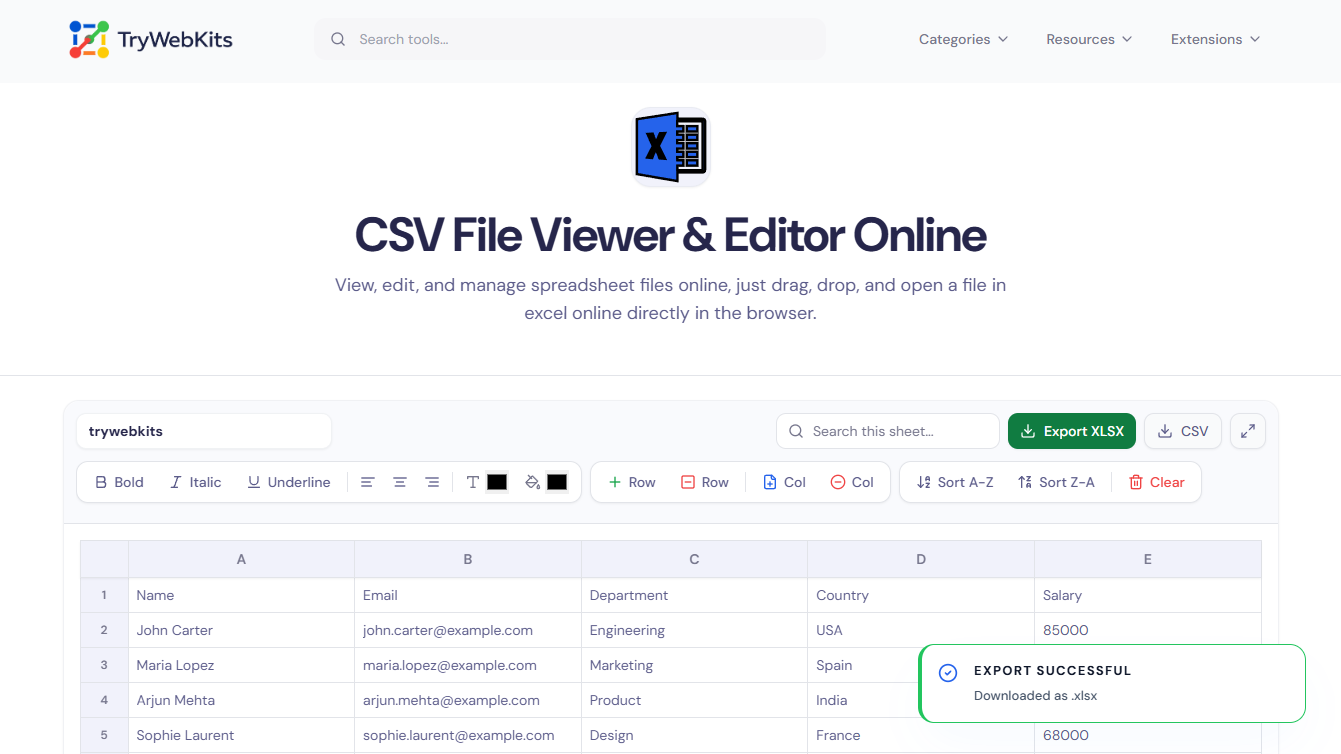
Work With Familiar Spreadsheet Features
Access features for efficient online data viewing and modification.
Quick Search
Easily locate specific data values within large spreadsheet files instantly.
Data Sorting
Click column headers to sort data rows in ascending or descending order quickly.
Multi-Sheet Support
Tool allows to read, edit, and navigate through multiple workbook tabs seamlessly.
Rich Cell Styling
Align text, change font colors, apply background fills, and bold data with the interactive toolbar.
Filter Rows
Apply data filters to focus on only the relevant subset of information needed.
Download Options
Save the viewed or edited data as a new CSV or Excel file effortlessly.
Practical Data Management Use Cases
This online tool offers immediate utility in various real-world scenarios.
Quick Checks
Instantly view and check small downloaded CSV files from a Google Sheet export.
Mobile Review
Open and review Excel reports or data files on a mobile device while away from a desktop.
Pre-Processing
Make minor data edits to a CSV file before uploading it to another system.
Validation
Use the data filtering and search functions to confirm data integrity in a spreadsheet file.
Why Use Our Online Viewer?
Here are the main reasons to use our online viewer:
No Software Installation Needed
Open Excel files, XLSX documents, and CSV files directly in the browser without purchasing or downloading Excel viewer software for Windows, Mac, or Linux systems.
Works On Every Device
Access spreadsheet files from desktop computers, laptops, tablets, and mobile phones equally well. The interface adapts automatically so data remains readable regardless of screen size.
Edits Without Altering Originals
Make changes, fix data errors, or reorganize columns while keeping the source file intact. Download the modified version separately when satisfied with the adjustments.
Versatile Data Handling
Operates as a reliable csv viewer and editor while managing standard spreadsheet formats efficiently.
Questions About The Online Excel Viewer
The tool is optimized for quick loading and can handle moderately sized CSV and Excel files efficiently for online viewing.
No registration is needed. Simply upload the file to start reading and editing immediately.
Yes, the viewer handles standard data encoding to accurately display various international character sets in the spreadsheet data.
Data remains in the browser until the tab is closed. To keep changes, use the download option to save a new copy.
Yes, after making edits or just viewing, users have the option to download the data file as either a CSV or XLSX (Excel) file.
Yes! If you add colors, alignments, and bold text, make sure to use the 'Export XLSX' button. Natively exporting as CSV will strip the formatting since CSVs only support plain text.
Yes. Once an XLSX file is dropped into the editor, a tab bar will appear at the bottom of the screen (just like Google Sheets) allowing you to jump between different worksheets.