
Ping Test
Check internet ping, jitter, and packet loss to servers around the world.
Global networks answer from the closest server, which makes them the fairest check of this connection. A test takes about 12 seconds.
Recent Tests
Compare results before and after a network change.
No tests yet: press Start Test to get started!
About This Tool
The Ping Test shows how quickly an internet connection gets a reply from a server. It reports the average, lowest, median, and highest ping in milliseconds, along with jitter and packet loss. The result reflects the local network, the internet provider, and the route to the server.
Gamers, remote workers, and anyone troubleshooting Wi-Fi can run it in any modern browser, with nothing to download and no account to create. Cloudflare, Google, Google Public DNS, Apple, YouTube, and Amazon Web Services regions can be tested one at a time or all together, but custom IP addresses and websites need the ping command in a terminal.
How To Run A Ping Test?
A standard test of 20 pings finishes in roughly 12 seconds.
- 1
Pick a server from the list, such as Cloudflare for a general connection check.
- 2
Choose how many pings to send, from 10 up to 100, then press Start Test.
- 3
Watch the graph and log fill in as each reply, or missing reply, comes in.
- 4
Read the average ping, jitter, and packet loss once the last reply arrives.
- 5
Press Test All Servers to compare every location in a single run.
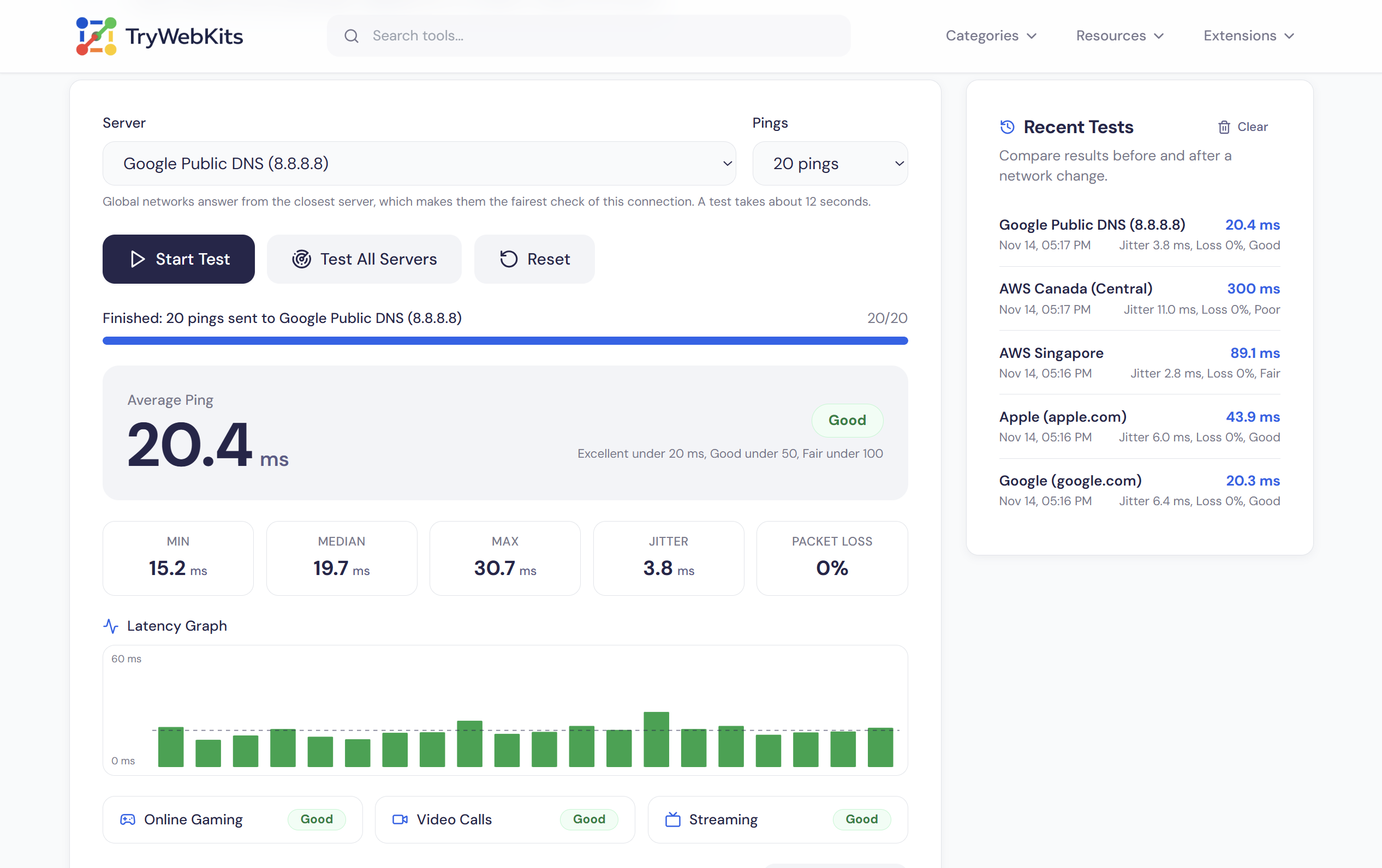
How This Ping Test Works?
Ping measures latency, the time a request takes to reach a server and come back. The browser sends a small HTTPS request straight to the server, starts a timer, and stops it when the first part of the reply arrives. The first request also builds the connection, so it appears in the log but is left out of the results.
A single-server test sends one request every half second, and any request with no reply after three seconds counts as lost. Jitter is the average change between one reply and the next, and packet loss is the share of requests that were lost. Because the requests leave from the browser, a VPN or proxy in use also affects the result.
The lowest result shows the best case, the median shows a typical reply, and the highest shows the worst spike. Because web requests re-send lost data, real loss on the line often appears as slow replies rather than missing ones, so a large gap between the median and the highest result still points to an unstable connection.
Features Of This Ping Test
Every reply is measured, plotted, and rated in one place.
Live Latency Graph
Each ping adds a bar to the graph, and requests without a reply appear red.
Jitter And Loss
Jitter and packet loss appear next to the average, so unstable connections stand out.
Server Comparison
One run ranks every server from fastest to slowest, showing average and loss for each.
Use-Case Ratings
Online gaming, video calls, and streaming each get a rating based on the measured results.
Reply Log
Each reply is logged with its time, and a text summary can be copied.
Recent Tests
Past results stay beside the tool to compare Wi-Fi, cable, or router changes.
Frequently Asked Questions
Under about 20 ms is excellent, and under about 50 ms is good for most games. Above 100 ms, the delay is usually noticeable in fast-paced games.
Jitter under about 30 ms and loss under about 1 percent are the usual targets for calls, and games prefer less. Steady loss above that tends to cause stutter.
No, speed is how much data moves per second, while ping is how long one request takes. A fast plan can still have a high ping.
Not exactly, the command sends ICMP packets, while this test times web requests from the browser, so results usually read a little higher.
Distance adds at least about 1 ms of ping per 100 km. Another continent often means 70 to 300 ms, so a nearby server gives a fairer reading.
Wi-Fi interference, background downloads, and busy networks are common causes. Use a wired connection, move closer to the router, pause downloads, and pick a nearby game server.
Yes, it runs in the browser on phones and tablets as well as computers.
Recent results stay in the browser for 48 hours, but only if cookies are accepted. Nothing is sent to TryWebKits, and the Clear button removes them at once.
You May Also Like

Find My IP & Device Info
Check your public IP address, estimated location, ISP, and detailed browser/device user agent information securely.

Deep Work Timer & Tracker
An advanced highly customizable, deep work tracker. Track focus sessions with detailed analytics, and visualize progress.

Domain to IP Converter
Resolve any domain to IPv4 and IPv6 addresses, view DNS records, and explore per-IP network details.

URL List Cleaner
Clean, sort, deduplicate, and organize URL lists online.

Typing Speed Checker
Test and improve your typing speed with real-time WPM tracking