Online Whiteboard
Draw, write, and sketch on a full-size canvas, with no sign-up needed.
About This Tool
The Online Whiteboard is a full-size drawing board that opens straight in the browser, with no sign-up or software to install. It suits explaining an idea in class, sketching a layout, planning during a meeting, or jotting a quick diagram.
Teachers can work through an example on screen during an online class, and students can sketch a diagram for homework or a study group.
How To Use The Online Whiteboard?
Sketching a quick idea takes only a few clicks or taps.
- 1
Pick a tool from the toolbar, such as the pen, a shape, or text.
- 2
Set a color and stroke size, then draw on the canvas by mouse or touch.
- 3
Paste an image with Ctrl+V or press Image, then drag, resize, or crop it.
- 4
Fix mistakes with Undo or Ctrl+Z, or press Clear to wipe the board.
- 5
Use fullscreen for more room, then press Download to save the board as a PNG.
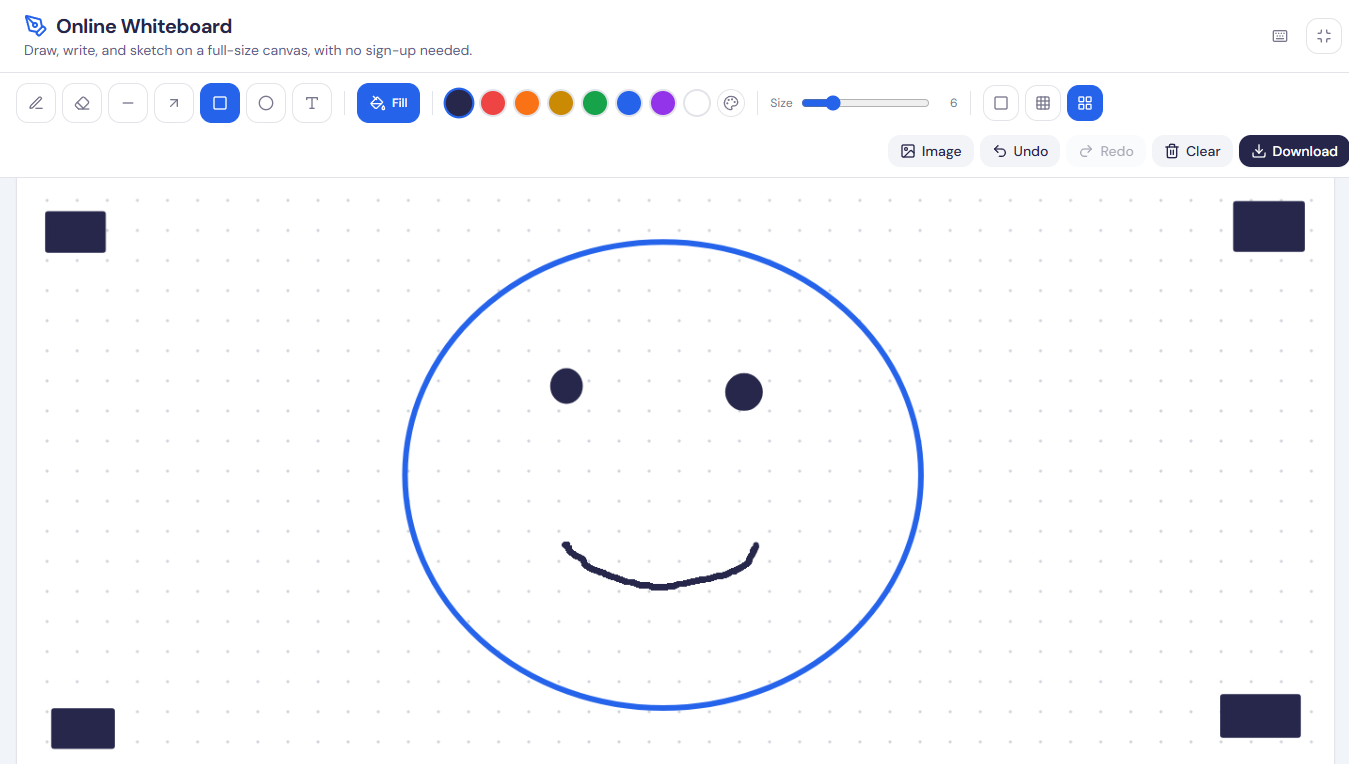
Quick Demo
A short walkthrough of drawing and adding images on the whiteboard.
Features Of This Online Whiteboard
Drawing tools, image handling, and export options on one canvas.
Freehand Pen
Draw freehand strokes in eight preset colors or a custom one, with adjustable thickness.
Shapes And Text
Draw lines, arrows, rectangles, and ellipses, with fill for the last two, and type text.
Image Handling
Pasted or uploaded pictures can be dragged, resized, and cropped before they are placed.
Undo And Redo
Move back and forward through recent changes, with Ctrl+Z and Ctrl+Shift+Z as shortcuts.
Fullscreen Mode
One button expands the whole browser tab into a full-screen board, and Escape exits.
Background Options
Switch between a blank, grid, or dot background to keep lines and layouts straight.
Touch And Stylus
Every tool responds to a mouse, a finger, or a stylus in the same way.
PNG Download
The finished board downloads as a PNG image that includes the chosen background.
Tips For Using The Online Whiteboard
Small habits that make a board faster to draw and read.
Use Shortcut Keys
Keys P, E, L, A, R, O, and T switch tools without using the toolbar.
Paste Straight In
Copied screenshots and copied text can be pasted straight onto the board with Ctrl+V.
Crop Before Placing
Trim an image with the edge handles first, then press the checkmark to place it.
Eraser Width
The eraser is three times wider than the stroke size, so shrink it for details.
Frequently Asked Questions
Only if cookies are accepted. The board is then restored within 48 hours of the last change; otherwise it clears on page refresh, so download it first.
No. It is a single-user board, so sharing means downloading the PNG or sharing the screen.
No. The text tool places plain typed text anywhere on the board, but there are no sticky note shapes.
The canvas is 1400 by 900 pixels, and the downloaded PNG uses the same size.
Yes. Clear empties the canvas at once, and Undo brings the drawing back right afterward.
No. Every stroke is rendered in the browser, and nothing is sent to any server.
You May Also Like
Metadata Editor
Edit EXIF, GPS, copyright, dates and more on JPEG, PNG and PDF files. Add unlimited custom fields.

QR Code Generator
Create QR codes for URLs, text, WiFi, and more

Text to Handwriting Converter
Turn typed text into realistic, handwritten-style notes.

Image Compressor and Resizer
Reduce image size and resize photos quickly without losing quality.

Image Background Remover
Remove backgrounds from images online with AI assistance.