Image Splitter
 Image Splitter
Split one image into a grid of pieces for Instagram posts, carousels and prints, then download them all in a ZIP.
Drop An Image Here Or Click To Browse
PNG, JPG, WebP, GIF, BMP or AVIF, up to 50 MB
The image is split on this device and never uploaded to any server.
About This Tool
This free image splitter cuts one image into equal pieces. The number of columns and rows sets how many pieces there are. Many people use it as a photo splitter for Instagram, where three posts side by side join into one large image on a profile. No account is needed, and no watermark is added.
A wide banner, a product photo, a drawing or a screenshot can all be split the same way. The original image stays unchanged on the device, and every piece is saved as a new image. The same image can be split again and again with a new grid until the layout looks right.
How To Split An Image Online?
Cut any image into ready pieces in five short steps.
- 1
Drop an image into the box, or click the box to choose a file.
- 2
Set the Columns and Rows to match the grid the image should be cut into.
- 3
Choose the Piece Shape, Piece Size and Format that suit where the pieces will go.
- 4
Press Split Image, and the finished pieces take the place of the preview.
- 5
Press Download All (ZIP) for every piece, or press a single piece to save it.
How This Image Splitter Works?
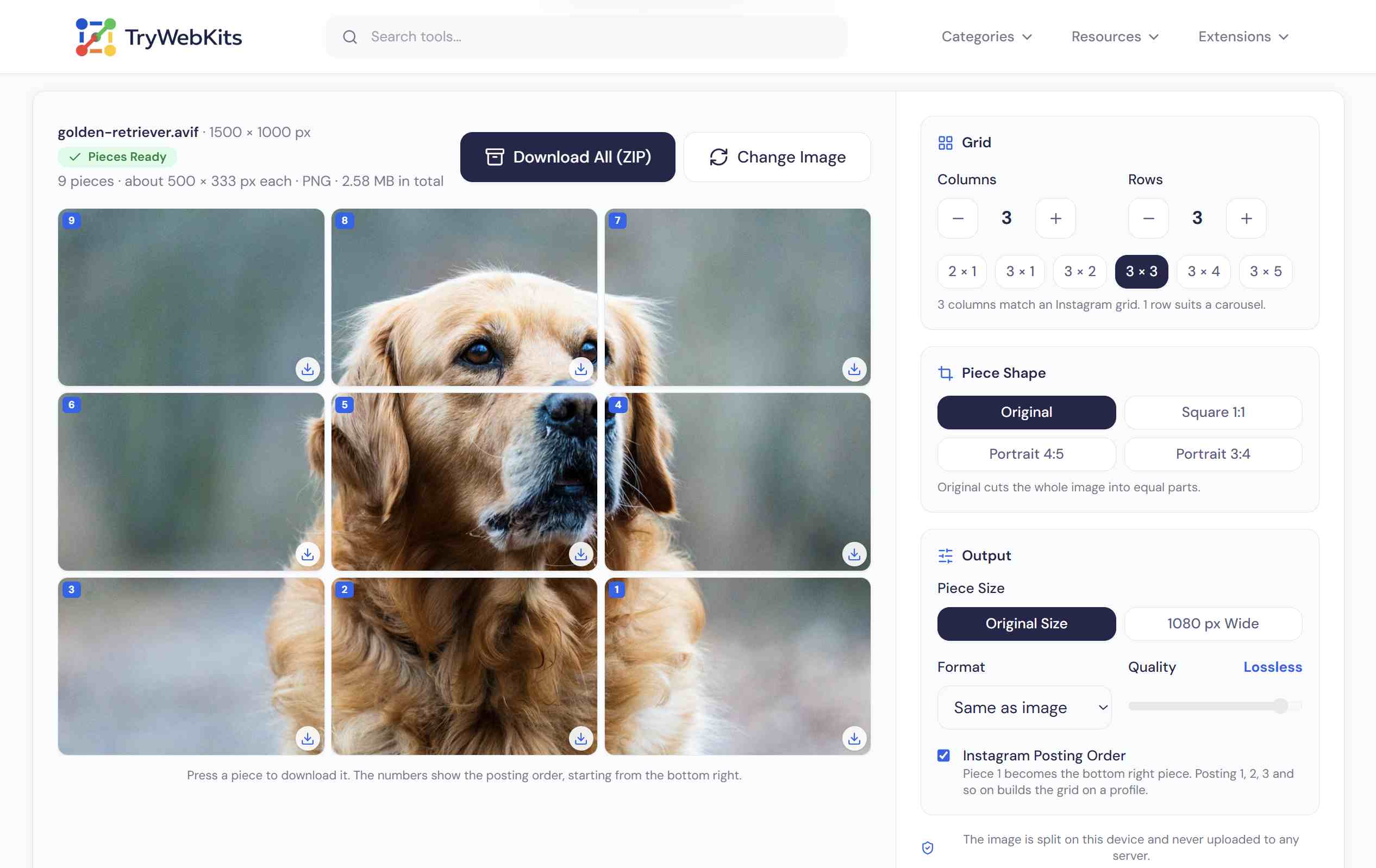
The tool draws evenly spaced lines across the image, one set for the columns and one for the rows, and saves each part as its own image. PNG, JPG, WebP, GIF, BMP and AVIF images of up to 50 MB can be added.
With the Original shape the whole image is used, so nothing is left out. Any other shape keeps the largest area that fits the grid, and every piece comes out the same size.
Privacy First
Images stay on the device, handled directly in the browser without being sent to any server or website.
Features Of This Image Splitter
Grid sizes, shapes, formats and file names for every kind of split.
Custom Grid Sizes
Cut an image into anything from two halves to a 10 by 10 grid.
Ready Layout Buttons
Six common layouts, from 2 × 1 to 3 × 5, wait as quick buttons.
Instagram Post Shapes
Pieces come out as Square 1:1, Portrait 4:5 or Portrait 3:4, the Instagram post shapes.
Movable Crop Frame
Slide the frame across the image to choose exactly which part goes into the pieces.
Instagram Ready Size
Every piece can be saved 1080 px wide, the standard width for Instagram posts.
Three Image Formats
Save the pieces as JPG, PNG or WebP, with a quality slider for lighter images.
Original Names Kept
Saved pieces carry the original image's name, so every set is easy to find later.
Carousel Slides
One row of pieces turns a wide image into slides for a swipe carousel.
Transparency Kept
PNG and WebP pieces keep see-through areas, and JPG pieces get a clean white background.
Why Use Our Tool?
Small details that make splitting an image simple and clear.
Easiest To Use
Every feature is kept easy to understand and easy to use, with hints on screen.
Numbered Pieces
Clear numbers on the grid and in the file names show each piece's place.
Detailed Preview
The cut lines, the piece size and the part left out are all shown first.
One Click Split
After the image is added, a single press on Split Image cuts every piece.
Frequently Asked Questions
One image is split at a time. A new image can be added right after the pieces are saved.
At the original size, PNG pieces match the image exactly. JPG and WebP pieces are saved again at the chosen quality, which starts at 92%.
Instagram shows the newest post first, so the last piece is posted first. The Instagram Posting Order option numbers the pieces in that order.
Yes. The Original Size option keeps the full resolution, so each piece can be printed on its own sheet and joined into a large poster.
Yes. Every piece is a normal image, so it can be posted on Facebook, X (Twitter) or any other site.
Yes. Two columns and one row cut a wide image into a left half and a right half, one for each screen.
No. No app, plug-in or design skill is needed, only a web browser.
You May Also Like

Image Compressor and Resizer
Reduce image size and resize photos quickly without losing quality.
Instagram Post Generator
Create a realistic Instagram post, reel, or carousel mockup and export it as an image.

Image Background Remover
Remove backgrounds from images online with AI assistance.

Instagram Story Generator
Create a realistic Instagram story mockup from the viewer or owner side and export as an image.

Video Background Remover
Remove or replace any video background for free, online with no watermark.

Fake Tweet Generator
Create realistic fake tweets instantly for pranks or memes.